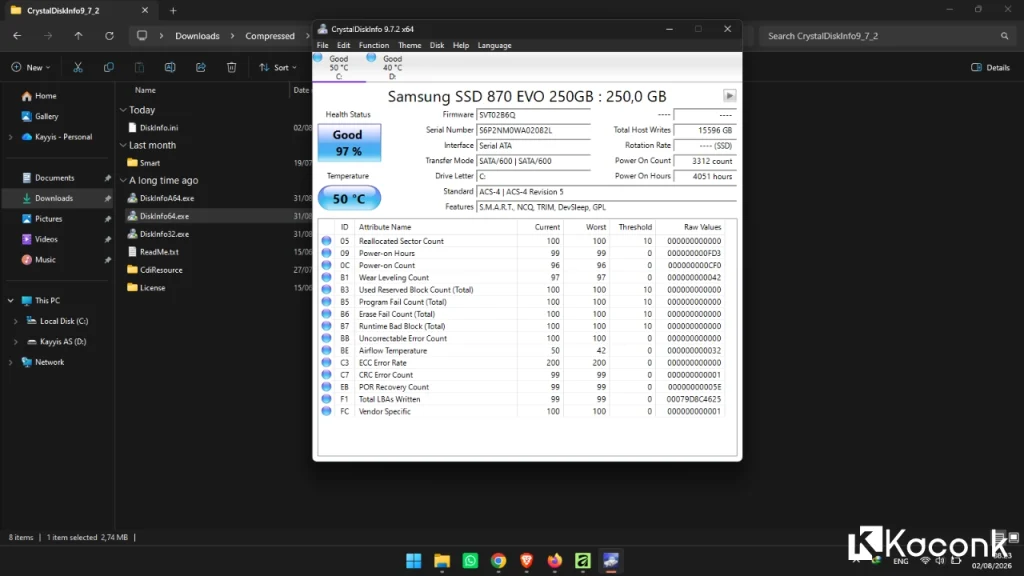
Download CrystalDiskInfo – Free HDD and SSD Health Monitoring Tool

If you are looking for a simple and reliable way to check the health of your HDD or SSD, CrystalDiskInfo is one of the most popular free tools available for Windows. In this article, we provide information about Download CrystalDiskInfo, its features, supported operating systems, available editions, and important tips for monitoring your storage devices.
CrystalDiskInfo is a free disk health monitoring application that reads S.M.A.R.T. (Self-Monitoring, Analysis, and Reporting Technology) data from compatible storage devices. It allows users to monitor important information such as drive temperature, power-on hours, reallocated sectors, and SSD health or wear levels.
The latest version available is CrystalDiskInfo 9.9.2, released in July 2026. The application supports a wide range of Windows versions, including Windows 7 through Windows 11 and recent Windows Server editions.
What Is CrystalDiskInfo?
CrystalDiskInfo is a lightweight utility designed to monitor the condition and health of HDDs and SSDs. Instead of waiting until a storage device fails completely, users can use the application to check various health indicators and identify potential problems at an early stage.
Main Functions
CrystalDiskInfo can display several important storage-related parameters, including:
- Drive temperature
- S.M.A.R.T. attributes
- Reallocated sector count
- Power-on hours
- Drive health status
- SSD wear level
- Interface and transfer mode
- Supported storage features
The information provided by CrystalDiskInfo can help users determine whether a storage device is operating normally or showing warning signs.
License
CrystalDiskInfo is free software released under the MIT License. It can be used without a subscription, making it a convenient option for users who need basic HDD and SSD health monitoring.
Why Use CrystalDiskInfo?
A hard drive or SSD can develop problems before it completely stops working. By regularly checking its health status, users can detect warning signs and take preventive action, such as backing up important files or replacing an aging storage device.
However, CrystalDiskInfo should be considered a monitoring tool rather than a replacement for a proper backup system.
Download CrystalDiskInfo
CrystalDiskInfo is available through the official CrystalDiskInfo website.
Official Website: CrystalMark
Available Editions
CrystalDiskInfo is available in several editions with different interface themes and designs.
Standard Edition
The Standard Edition uses the classic CrystalDiskInfo interface. It is lightweight, straightforward, and suitable for users who simply want to monitor their HDD or SSD without additional themes.
Shizuku Edition
The Shizuku Edition features an anime-inspired interface and character voices. It provides the same core disk monitoring functionality while offering a more distinctive visual experience.
Kurei Kei Edition
The Kurei Kei Edition features a modern design created in collaboration with IT Media. It is an alternative for users who prefer a different appearance from the standard interface.
Aoi Edition
The Aoi Edition uses a fresh blue-themed design with a clean and minimal visual style.
The different editions primarily provide different interface themes and presentation styles, while the core disk monitoring functions remain similar.

CrystalDiskInfo Download Formats
CrystalDiskInfo is generally available in two convenient formats.
Installer (.exe)
The installer version can be installed normally on a Windows computer. This is the best option for users who want CrystalDiskInfo to be installed and readily available from the Windows Start menu or desktop.
Portable (.zip)
The portable version can be extracted and launched without going through a traditional installation process.
This option is particularly useful for technicians and users who want to carry CrystalDiskInfo on a USB flash drive or use it temporarily on different computers.
Alternative CrystalDiskInfo Download Links
If you are looking for an alternative download option, make sure the source is trustworthy and provides the original CrystalDiskInfo files.
- Download CrystalDiskInfo
- Download CrystalDiskInfo Portable
For maximum security, downloading CrystalDiskInfo from its official website is recommended.
CrystalDiskInfo System Requirements and Compatibility
CrystalDiskInfo supports a wide range of Windows operating systems and hardware architectures.
Supported Operating Systems
Depending on the version and distribution format, supported systems include:
- Windows XP
- Windows Vista
- Windows 7
- Windows 8
- Windows 8.1
- Windows 10
- Windows 11
- Windows Server 2003 through Windows Server 2025
The portable version provides compatibility with some older Windows environments that may not be supported by the installer.
Supported Architectures
CrystalDiskInfo is available for several processor architectures, including:
- x86 (32-bit)
- x64 (64-bit)
- ARM64
Additional Requirements
Some versions or features may require:
- .NET Framework 4.8 or later
- Internet Explorer 8.0 or later for certain legacy environments
CrystalDiskInfo does not support very old Windows versions such as Windows 95, Windows 98, Windows Me, Windows NT 4.0, and Windows 2000. Server Core environments are also not supported.
Key Features of CrystalDiskInfo
CrystalDiskInfo provides a collection of useful features for monitoring HDD and SSD health.
1. Real-Time Health Monitoring
The application displays storage information in an easy-to-understand interface. Users can quickly check the drive’s health condition, temperature, S.M.A.R.T. status, and other important parameters.
This makes CrystalDiskInfo suitable for users who want a quick overview of their storage device.
2. S.M.A.R.T. Monitoring
One of the most important features of CrystalDiskInfo is its ability to read S.M.A.R.T. data.
S.M.A.R.T. information can contain various indicators related to drive reliability and usage. Depending on the drive, these may include reallocated sectors, power-on hours, temperature, error counts, and other attributes.
3. Automatic Alerts
CrystalDiskInfo can provide notifications when the health status of a compatible storage device changes.
For example, users can configure alerts when a drive reaches a Caution or Bad status, allowing them to take action before the situation becomes more serious.
4. Drive Temperature Monitoring
Temperature monitoring is another useful feature. Users can quickly see whether their HDD or SSD is operating within a normal temperature range.
Keeping an eye on storage temperature can be particularly useful when troubleshooting performance problems or unusual system behavior.
5. Health and Wear Information
For compatible SSDs, CrystalDiskInfo can display information related to drive health and wear.
This can help users understand how much the SSD has been used and monitor changes over time.
6. Graphs and Trend Monitoring
CrystalDiskInfo can provide visual information that makes it easier to observe changes in storage-related parameters.
Tracking values over time can help users identify trends such as increasing temperatures, changes in drive health, or other abnormal indicators.
7. AAM and APM Settings
For supported hard disk drives, CrystalDiskInfo may provide access to AAM (Automatic Acoustic Management) and APM (Advanced Power Management) settings.
These options can be used to adjust certain acoustic and power-management behaviors on compatible HDDs.
How to Check HDD or SSD Health with CrystalDiskInfo
Using CrystalDiskInfo is relatively simple.
- Download CrystalDiskInfo from a trusted source.
- Install the application or extract the portable ZIP version.
- Launch CrystalDiskInfo.
- Select the HDD or SSD you want to check.
- Review the displayed health status, temperature, and S.M.A.R.T. information.
- If the status shows Good, the drive is generally operating normally.
- If the status shows Caution, investigate the displayed S.M.A.R.T. attributes and back up important data.
- If the status shows Bad, prioritize backing up your data and consider replacing the drive.
Keep in mind that the meaning of individual S.M.A.R.T. attributes can vary between manufacturers and drive models.
CrystalDiskInfo Health Status Explained
CrystalDiskInfo uses an easy-to-understand health status system.
Good
A Good status generally indicates that no critical health warning has been detected based on the available S.M.A.R.T. information.
However, a Good status does not guarantee that a drive can never fail.
Caution
A Caution status indicates that one or more monitored parameters have reached a warning condition.
If this happens, back up important data immediately and investigate the affected S.M.A.R.T. attribute.
Bad
A Bad status indicates a serious storage health problem. The drive may be at significant risk of failure.
Users should prioritize data recovery or backup and consider replacing the storage device as soon as possible.
Important Tips When Using CrystalDiskInfo
Always Download From a Trusted Source
Download CrystalDiskInfo from the official website whenever possible. Avoid suspicious download sites that may bundle unwanted software or modified installers.
Do Not Treat CrystalDiskInfo as a Backup Tool
CrystalDiskInfo helps you monitor the condition of a storage device, but it does not protect your files from data loss.
Important files should always have a separate backup.
Pay Attention to Caution or Bad Status
If CrystalDiskInfo reports Caution or Bad, do not ignore the warning.
Back up your important files immediately and investigate whether the drive needs to be replaced.
Monitor Your Drives Regularly
Checking your HDD or SSD periodically can help you notice changes in temperature, health status, and other S.M.A.R.T. indicators.
Regular monitoring is especially useful for computers that contain important personal or work-related data.
Take Advantage of the Portable Version
If you frequently troubleshoot different computers, the portable version can be more convenient than installing the application on every system.
CrystalDiskInfo vs. Hard Disk Sentinel
CrystalDiskInfo and Hard Disk Sentinel are both popular tools for monitoring HDD and SSD health, but they target slightly different needs.
CrystalDiskInfo focuses on providing clear and lightweight access to S.M.A.R.T. information and basic drive health monitoring. It is a great choice for users who want a free and simple utility.
Hard Disk Sentinel provides a broader collection of monitoring, diagnostic, performance, and alert features. It may therefore be more suitable for users who need more advanced storage monitoring capabilities.
For basic health checks, CrystalDiskInfo is an excellent free option. For more comprehensive monitoring and diagnostics, users may also want to consider Hard Disk Sentinel.
Frequently Asked Questions
Is CrystalDiskInfo free?
Yes. CrystalDiskInfo is free software and is released under the MIT License.
Can CrystalDiskInfo check SSD health?
Yes. CrystalDiskInfo can monitor compatible SSDs and display information such as health status, temperature, S.M.A.R.T. attributes, and wear-related information.
Can CrystalDiskInfo check HDD health?
Yes. CrystalDiskInfo supports many HDDs and can display S.M.A.R.T. data, temperature, health status, power-on hours, and other available drive information.
Does CrystalDiskInfo support Windows 11?
Yes. CrystalDiskInfo supports Windows 11, as well as several previous Windows versions.
Is CrystalDiskInfo safe to use?
CrystalDiskInfo is a well-known storage monitoring utility. For the safest download experience, obtain it from the official CrystalMark website and avoid modified or unofficial installers.
Does CrystalDiskInfo repair a damaged hard drive?
No. CrystalDiskInfo is primarily a monitoring and diagnostic utility. It can help identify potential storage problems, but it should not be considered a tool for repairing physically damaged hardware.
What should I do if CrystalDiskInfo shows Caution?
If your drive shows Caution, back up important files immediately. Then check which S.M.A.R.T. attribute triggered the warning and consider replacing the drive if the condition is deteriorating.
Conclusion
CrystalDiskInfo is one of the most useful free tools for checking and monitoring HDD and SSD health on Windows computers. Its lightweight interface, S.M.A.R.T. monitoring capabilities, temperature information, health indicators, and portable version make it suitable for both beginners and experienced users.
If you want to download CrystalDiskInfo, choose the edition and file format that best suits your needs. The Standard Edition is ideal for users who prefer a simple interface, while the Shizuku, Kurei Kei, and Aoi editions offer alternative visual themes.
Most importantly, use CrystalDiskInfo as an early-warning and monitoring tool—not as a replacement for regular backups. If the application reports a Caution or Bad status, back up your important data as soon as possible and consider replacing the affected storage device.
For anyone who wants a free HDD and SSD health monitoring tool, CrystalDiskInfo remains a practical and lightweight solution for keeping track of storage device health and performance.
