How to Fix Install a Driver Providing OpenGL 2.0 or Higher Error

Are you experiencing the “Install a driver providing OpenGL 2.0 or higher” error when opening or installing applications such as Cisco Packet Tracer, Resolume Arena, CorelDRAW, SketchUp, OBS Studio, Android emulators, or other software?
If so, don’t worry. This error is relatively common, especially on computers using generic Windows display drivers or graphics hardware that does not properly support the OpenGL version required by the application.
In this article, we will explain the main causes of the “Install a driver providing OpenGL 2.0 or higher” error and provide several solutions that may help you fix the problem.
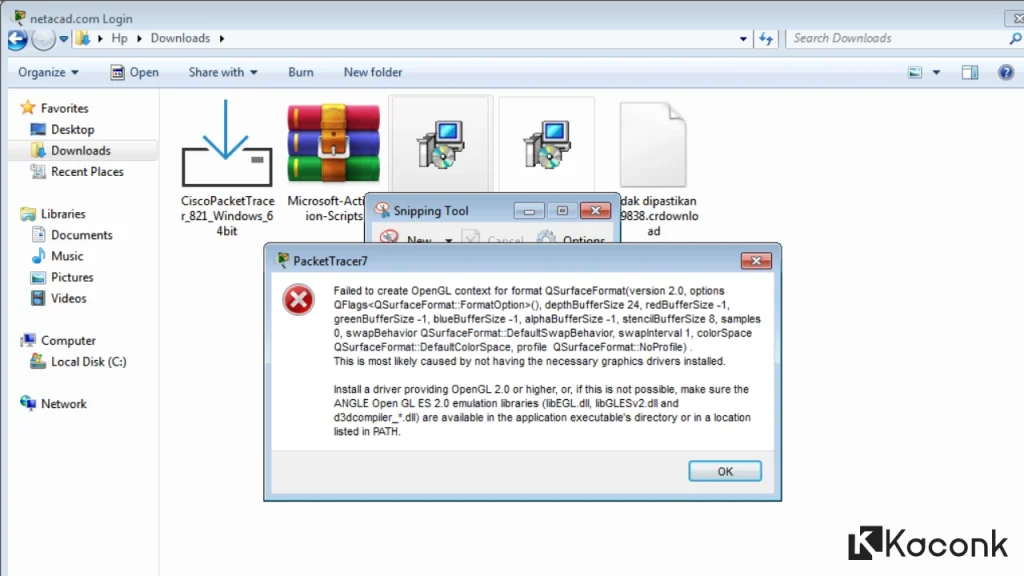
I personally encountered this issue when trying to run Cisco Packet Tracer on Windows 7. Although the installation process completed successfully without any problems, the application could not be launched and displayed the following error message:
Failed to create OpenGL context for format QSurfaceFormat version 2.0. Install a driver providing OpenGL 2.0 or higher.

After trying several solutions, I finally managed to fix the problem, and the application was able to run normally again.
What Is OpenGL?
OpenGL (Open Graphics Library) is a graphics API standard used by many applications to render 2D and 3D graphics. It acts as a bridge between an application and the computer’s graphics hardware (GPU), allowing graphics rendering to be processed efficiently.
Many modern applications require a specific version of OpenGL, such as OpenGL 2.0, OpenGL 3.3, or even OpenGL 4.1. If your computer does not have the proper graphics driver installed, or if the graphics hardware does not support the required OpenGL version, the application may display an error message such as:
- Install a driver providing OpenGL 2.0 or higher
- Failed to create OpenGL context
- Application failed to initialize
- Make sure your system meets the system requirements (e.g., OpenGL version 4.1)
Causes of the “Install a Driver Providing OpenGL 2.0 or Higher” Error
There are several common reasons why the “Install a Driver Providing OpenGL 2.0 or Higher” error appears, including:
- The graphics driver is not installed, or the system is still using Microsoft Basic Display Adapter.
- The graphics card driver is outdated.
- The graphics card does not support the version of OpenGL required by the application.
- The graphics driver is corrupted or incompatible with the operating system.
- The application requires a higher version of OpenGL than the graphics hardware can support.
Don’t worry. In the tutorial below, we will explain several methods to fix the “Install a Driver Providing OpenGL 2.0 or Higher” error, starting with the easiest solutions and progressing to more advanced options.
These methods have been tested in practice and can help restore applications that fail to launch because of missing, outdated, or incompatible OpenGL support.
How to Fix the “Install a Driver Providing OpenGL 2.0 or Higher” Error
In this tutorial, we will use a tool called Mesa3D. It provides a software-based OpenGL implementation and can be useful when an application encounters OpenGL-related problems.
I have personally used Mesa3D several times to resolve different OpenGL errors. One example was when running Resolume Arena, which displayed the following error message: “Application Failed to Initialize. Make Sure Your System Meets the System Requirements (e.g. OpenGL)”.
After installing Mesa3D, the application was able to launch normally again without displaying the error. Therefore, if you are experiencing the “Install a driver providing OpenGL 2.0 or higher” error or other OpenGL-related problems, this method is definitely worth trying.
Steps to Install Mesa3D
- Download Mesa3D from the official GitHub release page: Mesa3D Releases on GitHub
- Make sure the downloaded file is named
mesa3d-26.1.6-release-mingw.7z. Extract the archive, then double-clickperappdeploy.cmd. - Copy the installation path of the application experiencing the OpenGL error. For example:
C:\Program Files\Cisco Packet Tracer 9.0.0\bin - Paste the application path into the Command Prompt window and press Enter.
- Follow the instructions displayed in the CMD window and wait until the process is complete.
- Done! Try launching the application again. If the problem was caused by missing or incompatible OpenGL support, the application should now be able to start normally.


Conclusion
The “Install a Driver Providing OpenGL 2.0 or Higher” error is commonly caused by a missing, outdated, corrupted, or incompatible graphics driver. In some cases, the graphics hardware itself may not support the OpenGL version required by the application. As a result, applications such as Cisco Packet Tracer, Resolume Arena, and other software may fail to launch properly.
One solution that can be effective in certain situations is Mesa3D, particularly on computers with limited OpenGL support or when updating the graphics driver does not resolve the problem. Based on our testing, using Mesa3D successfully removed the OpenGL error and allowed the affected application to run normally again.
We hope this tutorial helps you fix OpenGL errors on Windows 7, Windows 8, Windows 10, and Windows 11. If you are still experiencing the problem or have found another solution that works, feel free to share your experience in the comments section. Your solution may help other readers facing the same issue.
