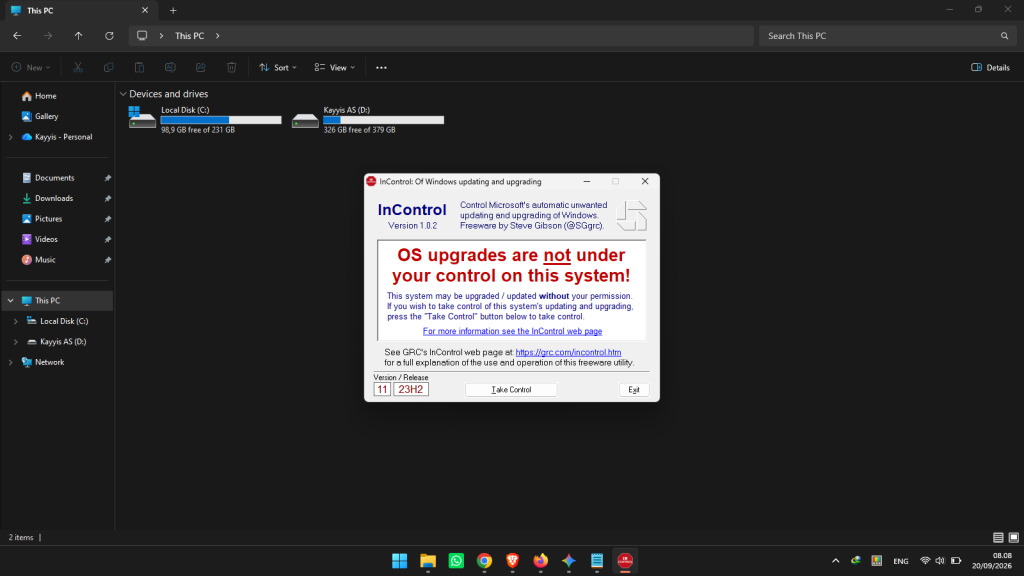
How to Stop Windows 11 Updates Permanently with InControl (Safe & Free)

Tired of disruptive Windows 11 updates popping up out of nowhere? You are not alone. Sudden automatic restarts and buggy feature updates often interrupt productivity and degrade system stability.
Fortunately, there is a clean, lightweight, and completely safe way to take back control: a free utility called InControl by Gibson Research Corporation (GRC).
In this complete guide, you will learn how InControl works, step-by-step instructions to lock your current Windows build, and essential safety tips to keep your PC secure.
What Is InControl?
InControl is a free, portable utility developed by Steve Gibson (Gibson Research Corporation / GRC) designed to put users back in charge of Windows Update.
Rather than forcefully killing underlying Windows services (which frequently leads to broken dependencies or store app errors), InControl uses native Windows Group Policy / Registry flags to lock your operating system to your current version. This prevents Microsoft from forcing unexpected feature updates (like jumping from 23H2 to 24H2 or newer) without your explicit permission.
Why Turn Off Automatic Windows 11 Updates?
Here are the primary reasons power users and professionals choose to pause or lock automatic updates:
- Avoid Day-One Update Bugs: Major feature updates often roll out with unresolved driver conflicts, gaming stutters, or audio/display glitches.
- Preserve Consistent Performance: Keeping a rock-solid, mature build ensures older or optimized machines maintain peak responsiveness.
- Prevent Unwanted Forced Upgrades: Stay on the specific Windows 11 release that works best for your workflow and software compatibility.
- Save Bandwidth: Prevent background downloads from consuming internet quotas or clogging metered connections.
- Eliminate Sudden Restarts: Say goodbye to unsaved work lost during unexpected system reboots while you are working.
Step-by-Step Guide: How to Stop Windows 11 Updates with InControl
Locking your Windows version takes less than two minutes. Follow these simple steps:
Step 1: Download InControl
Visit the official Gibson Research Corporation (GRC) InControl page and download the executable.
Step 2: Run as Administrator
Locate the downloaded InControl.exe file, right-click on it, and select Run as Administrator.
Step 3: Click “Take Control”
Once the application window opens, simply click the Take Control button.

That’s it! Your system is now locked to its current release. Windows will no longer download or force newer major feature updates in the background.
How to Re-Enable Windows Updates Later
If you ever decide to update your PC to a newer release in the future, reverting the process is effortless:
- Launch InControl.exe as Administrator.
- Click the Release Control button.
- Windows Update will instantly return to its default behavior.
Why Choose InControl Over Other Methods?
Unlike crude registry scripts or heavy third-party tweakers, InControl offers several clear advantages:
- 100% Free & Portable: Zero installation required, zero background telemetry, and a tiny footprint (under 300 KB).
- Zero System Damage: It leverages official Windows policy mechanisms rather than hacking system files or permanently breaking system components.
- Instantly Reversible: One single click toggles the control on or off whenever you need.
- Retains Essential Security Patches: It stops disruptive feature upgrades while still allowing standard monthly quality and security definitions to apply normally.
Best Practices for Running a Locked Windows System
If you choose to disable automatic feature updates, follow these basic security rules to keep your PC protected:
- Keep Antivirus Active: Ensure Windows Defender or your chosen third-party security suite remains up to date.
- Download Carefully: Only download installers and drivers from reputable, verified developer portals.
- Update Software Manually: Periodically check for updates for your web browsers, graphics drivers, and everyday applications.
- Maintain Regular Backups: Regularly back up your vital documents and project files to an external drive or cloud storage.
Frequently Asked Questions (FAQ)
- Is InControl safe to use?
Yes, absolutely. InControl does not modify critical core binaries or install persistent background services. It simply sets official Microsoft-recognized Registry values that control OS version targeting. - Will I still receive security patches?
Yes. Locking your version with InControl blocks major feature version upgrades while allowing standard cumulative security patches within your active build branch to function. - Does InControl work on Windows 10?
Yes. InControl works on both Windows 10 and Windows 11 (Home, Pro, and Enterprise editions). - Is the lock permanent?
It remains active indefinitely until you manually open the app and click Release Control. - Does InControl require an active internet connection?
No. Once the tiny utility is downloaded, it operates entirely offline.
Conclusion
Using InControl is by far the most reliable, non-destructive way to stop unwanted Windows 11 updates and preserve your system’s stability. It gives you total control over when and how your PC upgrades, without risking system crashes or corrupting Windows Update services.
Have you tried InControl, or do you prefer another method to manage updates? Let us know your experience in the comments below!
