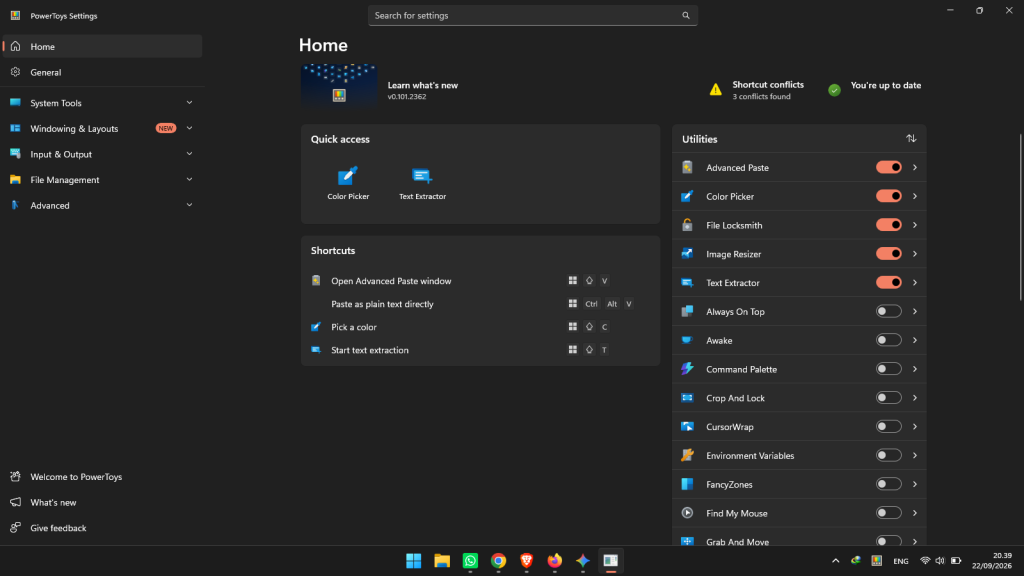
Download Microsoft PowerToys: Features, Benefits, and Installation Guide

Windows is one of the world’s most versatile operating systems, but many users don’t realize Microsoft offers an official, free suite of power-user tools: Microsoft PowerToys.
Originally introduced during the Windows 95 era, PowerToys was completely rebooted as an open-source project for modern Windows. Today, it provides dozens of system-level enhancements designed to speed up workflows, optimize multitasking, and give you total control over Windows 10 and Windows 11.
What Is Microsoft PowerToys?
Microsoft PowerToys is a set of free, open-source utilities developed by Microsoft alongside the GitHub open-source community. It integrates seamlessly into Windows to provide capabilities not available out of the box—such as advanced window tiling, instant file searching, on-screen text extraction, and clipboard formatting.
Best of all, PowerToys is completely modular. You can toggle on only the tools you need and leave the rest disabled to keep your PC fast and clutter-free.

Top PowerToys Features You Should Use
While PowerToys includes over 20 utilities, these are the standout tools every user should try:
- Window & Workspace Management
- FancyZones: Create custom grid layouts on your screen. Hold Shift while dragging a window to snap it into your custom zone instantly.
- Workspaces: Save multi-app desktop layouts and launch your entire project workspace with a single click.
- Always on Top (Win + Ctrl + T): Pin any app window so it stays visible over others.
- Crop And Lock: Crop a portion of an active window into an interactive mini-view or static picture-in-picture widget.
- Fast Navigation & Productivity
- PowerToys Run (Alt + Space): A blazing-fast Spotlight-style search bar to launch apps, find files, calculate math, and convert units without opening the Start Menu.
- Text Extractor (Win + Shift + T): Instant Optical Character Recognition (OCR). Select any area on your screen to copy text from non-selectable images or videos.
- Advanced Paste (Win + Shift + V): Paste clipboard data directly as plain text, Markdown, JSON, or format it with optional local AI assistance.
- Peek (Ctrl + Space): Preview photos, Markdown, and source code files directly inside File Explorer without opening an app.
- Workflow & Hardware Tweaks
- PowerRename: Right-click a batch of files in File Explorer to rename them all at once using pattern matching or regular expressions.
- Keyboard Manager: Remap keys and create custom system-wide keyboard shortcuts.
- Mouse Without Borders: Control up to four separate PCs using a single keyboard and mouse over your local Wi-Fi.
- PowerToys Awake: Keep your computer and display awake on demand without altering your system sleep plans.
- Color Picker (Win + Shift + C): Quickly sample and copy any hex, RGB, or CMYK color from anywhere on your display.
Why Should You Install PowerToys?
- 100% Free & Open Source: Maintained transparently on GitHub with active community bug fixes.
- Lightweight: Runs silently in the system tray without draining memory or battery.
- Regular Updates: Microsoft frequently adds new capabilities aligned with the latest Windows updates.
- Customizable: Disable any tool you don’t use to save background resources.
How to Download and Install Microsoft PowerToys
You can install PowerToys using any of these three quick methods:
Method 1: Via the Microsoft Store (Easiest)
- Open the Microsoft Store app on your PC.
- Search for Microsoft PowerToys.
- Click Install. It updates automatically in the background.
Method 2: Via Windows Terminal / PowerShell (Fastest)
- Right-click the Start Menu and select Terminal (or PowerShell).
- Type the following command and hit Enter:
winget install Microsoft.PowerToys -s wingetMethod 3: Via GitHub (Standalone Installer)
- Head over to the official Microsoft PowerToys GitHub Releases page.
- Under Assets, download the latest .exe installer (choose x64 for Intel/AMD, or ARM64 for Snapdragon devices).
- Run the installer and follow the on-screen prompts.
Pro Tip: For utilities that affect protected system windows (like Task Manager), open the PowerToys Settings dashboard and enable Always run as administrator.
Troubleshooting Common Issues
- Hotkeys not responding: Open PowerToys Settings, navigate to the specific tool, and verify its shortcut isn’t conflicting with another app.
- Features failing to hook into system apps: Restart PowerToys in Administrator mode.
- Background crash after a Windows update: Ensure your graphics drivers and Windows build are up to date, or download the latest release patch from GitHub.
Conclusion
Whether you want simpler multi-window tiling with FancyZones, rapid app-launching with PowerToys Run, or simple image resizing in File Explorer, Microsoft PowerToys is an essential upgrade for any Windows 10 or Windows 11 PC.
Install it today, activate your favorite modules, and see how much time it saves in your daily workflow!
