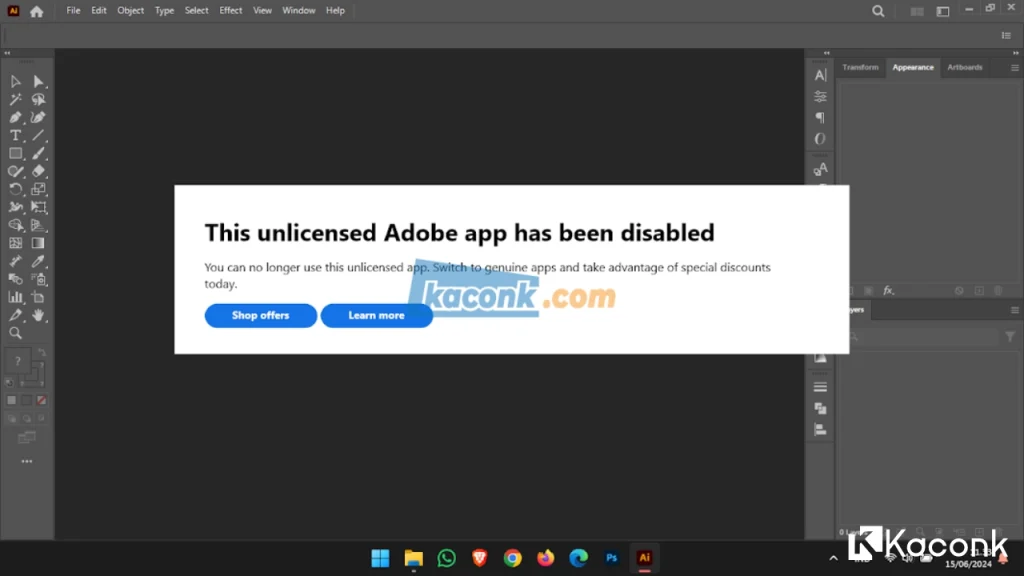
How to Fix This Unlicensed Adobe App Has Been Disabled

Are you seeing the “This unlicensed Adobe app has been disabled” message when opening Adobe Photoshop, Adobe Illustrator, Adobe Premiere Pro, or another Adobe application?
This notification usually appears when Adobe detects that an application is not properly licensed or cannot verify its license. Adobe applications require a valid license or subscription, and the software may be restricted when its licensing status cannot be verified.
In some cases, the warning can also appear because of an incorrect installation, modified application files, an outdated Adobe application, or problems with the Adobe licensing and verification services.
Adobe provides a wide range of professional applications that are widely used for creative work. Adobe Photoshop is commonly used for photo editing, Adobe Illustrator is designed for vector graphics, while Adobe Premiere Pro is widely used for video editing.
If you depend on Adobe applications for work or business, using a properly licensed version is recommended. Besides supporting the developers, a genuine Adobe installation provides access to updates, security fixes, technical support, and the latest features.
Why Does “This Unlicensed Adobe App Has Been Disabled” Appear?
The message can appear for several reasons, including:
- Adobe cannot verify the application’s license.
- The application was installed from an unofficial or modified source.
- Adobe application files have been modified.
- The Adobe licensing service is not working correctly.
- The Creative Cloud installation is outdated or corrupted.
- The application is not properly associated with the Adobe account that owns the license.
- Internet connectivity is preventing Adobe from completing the license verification process.
The exact cause can vary depending on the Adobe application and how it was installed.
How to Fix “This Unlicensed Adobe App Has Been Disabled”
The safest way to resolve this problem is to remove any unofficial installation and install Adobe software through an official Adobe source.
1. Check Your Adobe Account and Subscription
First, make sure that you are signed in with the Adobe account associated with your active subscription. Open Adobe Creative Cloud and sign in using your Adobe account.
Check your account to confirm that the Adobe application you are trying to use is included with your current plan. If your subscription has expired, renew it before attempting to launch the application again.
2. Remove the Unofficial Adobe Installation
If the application was obtained from an unofficial source or contains modified files, uninstall it before installing a genuine copy.
Open: Settings → Apps → Installed apps → Find the affected Adobe application and select Uninstall.
You may also need to remove related Adobe components if the installation has been heavily modified. After uninstalling the application, restart Windows.
3. Install Adobe Creative Cloud
Download and install the latest version of Adobe Creative Cloud from Adobe’s official website.
After installation:
- Launch Adobe Creative Cloud.
- Sign in with your Adobe account.
- Open the Apps section.
- Find the Adobe application you need.
- Click Install.
- Wait for the installation to finish.
- Launch the application again.
Using Creative Cloud ensures that the application and its licensing components are installed from an official source.
4. Update the Adobe Application
If you already have a legitimate Adobe installation, check whether an update is available. Open Adobe Creative Cloud and go to: Apps → Updates
Install any available updates for the affected application and Adobe Creative Cloud. Keeping the software updated can resolve compatibility problems and known bugs that may interfere with normal operation.
5. Check Adobe Licensing Services
Adobe applications rely on background services for various functions, including licensing and authentication.
If you have a genuine installation but continue to receive the “This unlicensed Adobe app has been disabled” message, check whether the relevant Adobe services are running correctly.
Press: Windows + R → Type: services.msc → Press Enter.
Look for Adobe-related services and make sure they have not been disabled by a system optimization tool, antivirus program, or previous software modification.
Avoid disabling Adobe licensing or authentication services if you are using a legitimate Adobe subscription.
6. Check Your Internet Connection
Adobe applications may need an internet connection to verify account and subscription information.
Make sure your computer has a stable internet connection and that Adobe Creative Cloud can connect normally.
If you use a corporate, school, or heavily restricted network, firewall or proxy policies may interfere with Adobe authentication.
In that situation, contact the network administrator or check the network configuration rather than attempting to bypass Adobe’s verification system.
7. Repair or Reinstall Adobe Creative Cloud
If the problem continues even though you have a valid Adobe subscription, the Creative Cloud installation itself may be damaged. Try uninstalling Adobe Creative Cloud and reinstalling the latest version from Adobe.
After reinstalling:
- Sign in to your Adobe account.
- Verify your subscription.
- Reinstall the affected Adobe application.
- Restart Windows if necessary.
- Launch the application again.
What If You Previously Used a Modified Adobe Version?
If you previously installed a modified or unofficial version of Adobe software, simply installing a genuine copy may not always resolve the problem immediately.
Modified installations can change application files, licensing components, firewall rules, or the Windows hosts file.
In this situation, remove the modified installation completely and restore any system or network settings that were changed by third-party tools.
Do not use unofficial patches or activation tools to bypass Adobe’s licensing system.
After cleaning up the previous installation, install Adobe Creative Cloud and the required application from an official Adobe source.
Avoid Unofficial Adobe Activation Tools
You may find websites offering tools that claim to remove the “This unlicensed Adobe app has been disabled” notification.
These tools often modify Adobe files or Windows configuration to interfere with license verification.
Using such software can create additional problems, including:
- Malware infections
- Unwanted background processes
- Application crashes
- Broken Adobe installations
- Security vulnerabilities
- Loss of access to official updates
- Unexpected Windows configuration changes
For a computer used for work or business, using an official Adobe installation is the safer choice.
Adobe Genuine Service and Other Verification Messages
You may also encounter other Adobe licensing-related notifications, such as:
- Adobe Genuine Service Alert
- Adobe Genuine Software Verification Failure
- This unlicensed Adobe app has been disabled
These messages are generally related to Adobe’s software licensing and authenticity checks.
If you are using a legitimate Adobe subscription and believe the warning is incorrect, verify your Adobe account, update Creative Cloud, and reinstall the affected application if necessary.
Conclusion
The “This unlicensed Adobe app has been disabled” message usually indicates that Adobe cannot verify the application’s licensing status or has detected an installation that is not properly licensed.
The most reliable solution is to remove any unofficial or modified Adobe installation and install the software through Adobe Creative Cloud using a valid Adobe account and subscription.
If you already have a genuine Adobe license, also check your account status, update Creative Cloud, verify your internet connection, and make sure Adobe’s required services have not been disabled.
Using genuine Adobe software is not only important for licensing compliance, but also helps ensure that you receive security updates, new features, and reliable support.
We hope this guide helps you resolve the “This unlicensed Adobe app has been disabled” error and get your Adobe application working normally again.
