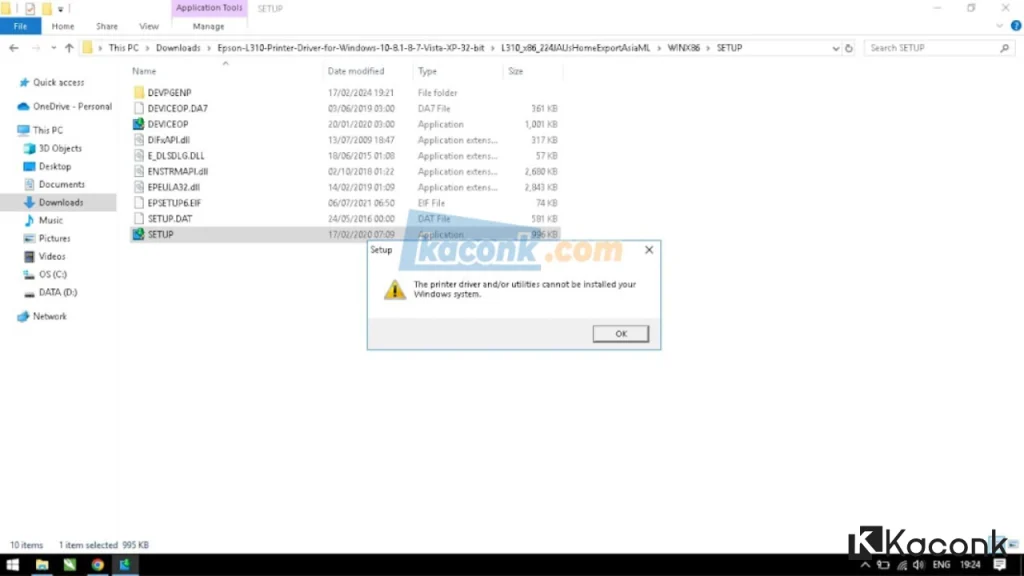
How to Fix The Printer Driver and/or Utilities Cannot Be Installed on Your Windows System

Are you experiencing the “The Printer Driver and/or Utilities Cannot Be Installed on Your Windows System” error when installing a printer driver on your Windows computer or laptop?
A printer requires the correct printer driver to communicate with the computer and perform printing tasks. Without a compatible driver, Windows may not be able to properly recognize or communicate with the printer.
A printer driver is a software program that acts as a bridge between the computer and the printer. When you send a print command from your computer, the driver processes the information and converts it into a format that the printer can understand.
Usually, a new printer comes with a CD containing the printer driver and other supporting software. This makes it easier to install the correct driver for the printer.
But what if your printer does not come with a driver CD?
Don’t worry. You can download the required printer driver directly from the official website of the printer manufacturer. For example, Epson provides drivers through its official website, while Canon provides drivers through its official support website.
Always make sure that you download the correct driver for your printer model and operating system. Avoid downloading printer drivers from unknown websites because unofficial or modified files may contain malware or unwanted software that could harm your computer and put your data at risk.
My Experience With the Printer Driver Installation Error
A friend of mine once encountered the “The Printer Driver and/or Utilities Cannot Be Installed on Your Windows System” error while installing a printer driver.
According to him, he had already downloaded the correct printer driver several times, but the same error continued to appear during installation.
After checking the problem, I discovered that the driver had not been downloaded directly from the printer manufacturer’s official website. Instead, it had been downloaded from another third-party website.
After downloading the correct driver from the official website and installing it again, the problem was resolved.
In this tutorial, I will explain how to download and install a printer driver correctly to avoid the “The Printer Driver and/or Utilities Cannot Be Installed on Your Windows System” error.
Solution: The Printer Driver and/or Utilities Cannot Be Installed on Your Windows System
Fortunately, fixing this problem is relatively easy. In most cases, you do not need to take your computer or printer to a repair shop.
The most important step is to make sure that you download the correct printer driver from the official website of the printer manufacturer.
Download the Printer Driver From the Official Website
For example, let’s say you have an Epson L310 printer but no longer have the original driver CD.
You can download the printer driver directly from the official Epson website.
Step 1: Connect Your Computer to the Internet
Make sure your laptop or desktop computer is connected to the internet.
Open any web browser, such as Google Chrome, Microsoft Edge, or Mozilla Firefox.
Step 2: Search for Your Printer Driver
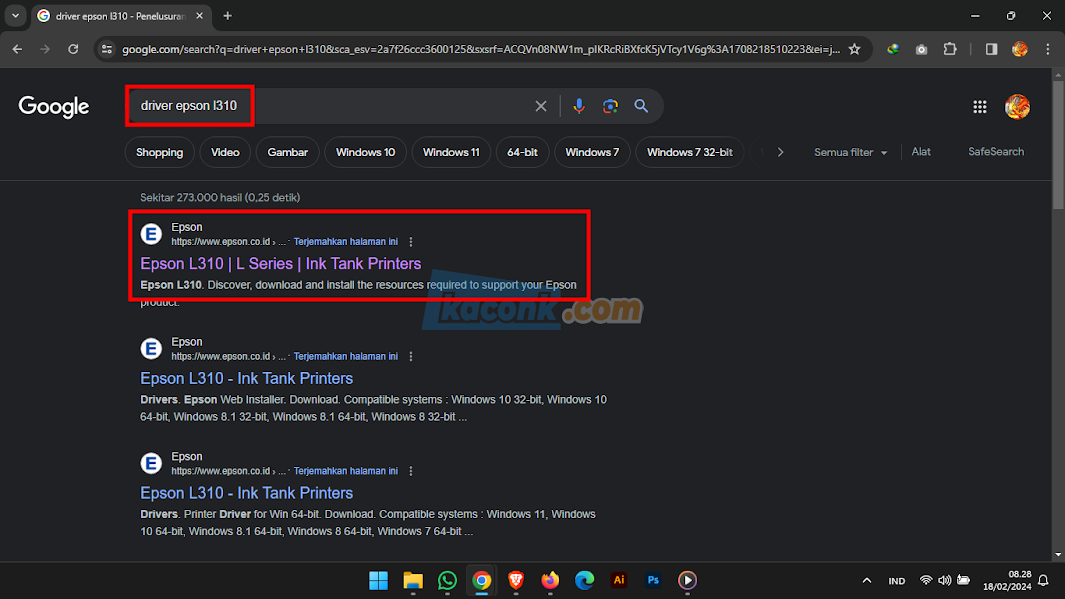
Open Google and search for your printer model.
For example: “Epson L310 driver”
Look carefully at the search results and make sure you select the official website belonging to the printer manufacturer.
Do not immediately download a driver from an unfamiliar website simply because it appears at the top of the search results.
Step 3: Select Your Operating System
After opening the manufacturer’s official support page, select the operating system installed on your computer.
For example:
- Windows
- macOS
- Linux
Make sure you select the correct operating system and version before downloading the driver.
Step 4: Download the Printer Driver
Find the Drivers or Downloads section and locate the appropriate printer driver.
For example, on an Epson support page, you may find an option such as:
Drivers → Printer Driver for Windows → Download
The exact menu names may vary depending on the printer model and manufacturer.
Step 5: Install the Driver
Once the download is complete, open the driver installer and follow the instructions displayed on the screen.
Complete the installation process as you normally would when installing other Windows applications.
After the installation is finished, restart the computer if requested.
Step 6: Test the Printer
After installing the driver, connect the printer to the computer and try printing a test document.
If the correct driver has been installed successfully, Windows should be able to recognize the printer and communicate with it normally.

Why Should You Download Printer Drivers From the Official Website?
Downloading a printer driver from the manufacturer’s official website provides several important advantages.
Correct Driver for Your Printer
Official support pages provide drivers specifically designed for particular printer models.
Better Compatibility
The official driver is more likely to be compatible with your version of Windows and the printer hardware.
Safer Downloads
Downloading directly from the manufacturer reduces the risk of accidentally installing modified drivers, malware, or unwanted software.
Access to the Latest Driver
Manufacturers may update their drivers to improve compatibility, fix bugs, and support newer operating systems.
Common Mistakes When Installing Printer Drivers
Several common mistakes can cause printer driver installation problems.
- Downloading a driver for the wrong printer model
- Installing a driver designed for a different operating system
- Downloading drivers from unofficial websites
- Using an outdated driver
- Installing multiple incompatible printer drivers
- Ignoring the manufacturer’s installation instructions
Before downloading anything, always verify the printer model, operating system, and system architecture.
Conclusion
The “The Printer Driver and/or Utilities Cannot Be Installed on Your Windows System” error can occur when Windows cannot properly install or use a printer driver.
One of the first things you should check is the source of the driver. If you downloaded the driver from an unofficial website, try removing it and downloading the correct driver directly from the printer manufacturer’s official website.
In the example above, downloading the correct driver for the Epson L310 and installing it from the official source resolved the problem.
Therefore, if you encounter the “The Printer Driver and/or Utilities Cannot Be Installed on Your Windows System” error, make sure that you are using the correct driver for your printer model and Windows version.
We hope this tutorial helps you install your printer driver successfully and resolve the printer driver installation problem.
If you have any questions or encounter another issue while installing your printer driver, feel free to leave a comment. We will be happy to help and provide additional information.
Thank you for reading, and we appreciate all of your feedback and support!
