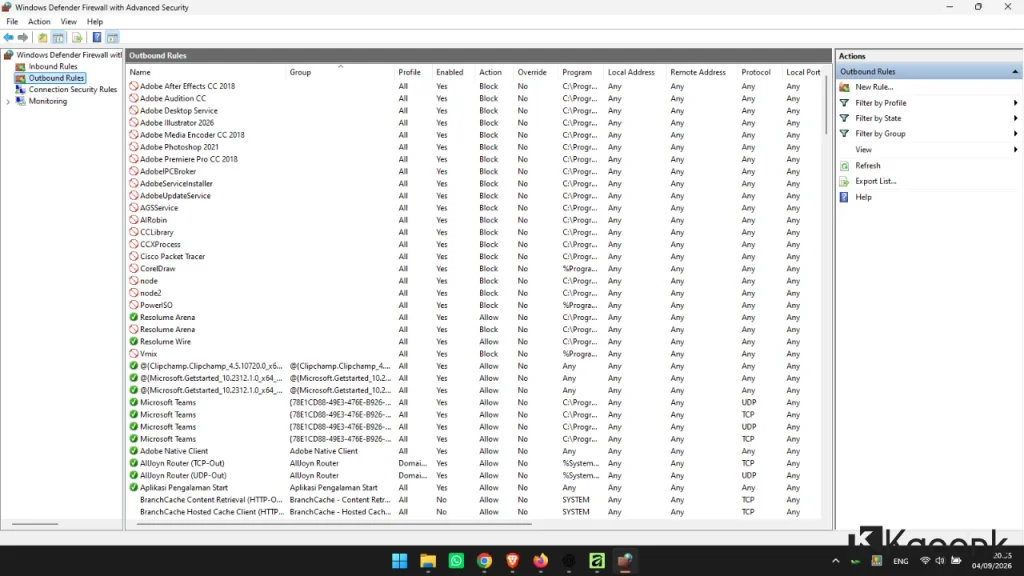
How to Block a Program with Firewall in Windows 10

Controlling internet access for applications on your computer is not only useful for saving bandwidth, but also for improving security and privacy. One of the easiest ways to control an application’s internet access is to block a program using Windows Firewall.
For Windows 10 users, this feature is already available through the built-in Windows Defender Firewall, so you do not need to install additional firewall software.
In this guide, we will show you how to block a program with Firewall in Windows 10 step by step. The method is easy to follow, even if you are a beginner.
What Is a Firewall and Why Is It Important?
A firewall is a security system that controls network traffic between your computer and other devices or networks. It can manage both incoming (inbound) and outgoing (outbound) connections.
With Windows Firewall, you can create rules to determine which applications are allowed or blocked from accessing the network.
There are several reasons why you may want to block a program from accessing the internet:
- Prevent an application from sending data without your permission
- Reduce unnecessary internet bandwidth usage
- Prevent unwanted automatic updates
- Improve system security
- Control which applications can communicate over the network
How to Block a Program with Firewall in Windows 10
Windows 10 includes Windows Defender Firewall with Advanced Security, which allows you to create rules for individual applications.
Follow the steps below to block a program from accessing the internet.
Step 1: Open Windows Defender Firewall
Open the Start Menu and search for: Windows Defender Firewall → Open the application from the search results.
Step 2: Open Advanced Settings
In the Windows Defender Firewall window, click: Advanced settings → This will open Windows Defender Firewall with Advanced Security.
Step 3: Open Outbound Rules
On the left-hand panel, click: Outbound Rules → Outbound Rules control connections initiated by applications on your computer. → On the right-hand panel, click: New Rule…
Step 4: Select Program
The New Outbound Rule Wizard will appear. → Select: Program → Then click Next. → Select: This program path → Click Browse and locate the .exe file of the application you want to block.
For example: C:\Program Files\Google\Chrome\Application\chrome.exe →After selecting the executable file, click Next.
Step 5: Block the Connection
Select: Block the connection → Then click Next.
Step 6: Select Network Profiles
You will be asked when the rule should apply. Select all three options: Domain, Private, Public → Click Next.
Step 7: Name the Firewall Rule
Enter a name for the rule so you can easily identify it later. → For example: Block Chrome → You can also add a description if necessary. → Click Finish. → The firewall rule has now been created.


The Program Is Now Blocked
Once the outbound rule is enabled, the selected application should no longer be able to establish outbound network connections through the Windows Firewall.
Try opening the blocked application and accessing the internet to verify that the firewall rule is working.
Keep in mind that some applications may use multiple executable files or network components. In such cases, blocking one .exe file may not completely prevent the application from accessing the internet.
How to Check Whether the Program Is Blocked
To verify that the firewall rule is active:
- Open Windows Defender Firewall with Advanced Security.
- Select Outbound Rules.
- Find the rule you created.
- Make sure its status is Enabled.
You can also test the application directly by opening it and attempting to access an online feature.
How to Unblock a Program
If you change your mind and want to allow the application to access the internet again, you can disable or remove the firewall rule.
Go to: Windows Defender Firewall with Advanced Security → Outbound Rules → Find the rule you created, then right-click it. → You can choose:
Disable Rule
This temporarily disables the firewall rule. You can enable it again later if needed.
Delete
This permanently removes the firewall rule. If you only want to temporarily allow the application to access the internet, Disable Rule is usually the better option.
Additional Tips
Use Inbound Rules When Necessary
For most applications, an Outbound Rule is sufficient when your goal is to prevent the program from connecting to the internet.
However, Inbound Rules can be used when you also need to control connections coming into your computer.
Be Careful When Blocking System Applications
Avoid blocking important Windows system components unless you know exactly what the program does.
Blocking the wrong executable can cause applications or certain Windows features to stop working correctly.
Use Clear Rule Names
Give your firewall rules descriptive names, such as:
- Block Chrome
- Block Adobe Updater
- Block Game Launcher
Clear names make it easier to identify and manage your rules later.
Third-Party Firewall Alternatives
Besides the built-in Windows Defender Firewall, several third-party firewall applications offer additional monitoring and management features.
Some examples include:
- GlassWire
- TinyWall
- Comodo Firewall
However, for basic tasks such as blocking an application from accessing the internet, Windows Defender Firewall is usually sufficient and does not require additional software.
Conclusion
Blocking a program from accessing the internet is a simple way to gain more control over network activity on your Windows 10 computer.
With the built-in Windows Defender Firewall, you can create an outbound rule for a specific .exe file and prevent that application from establishing network connections.
The process only requires a few steps:
Windows Defender Firewall → Advanced Settings → Outbound Rules → New Rule → Program → Block the Connection
You do not need advanced technical knowledge to perform this configuration. However, always be careful when blocking applications, especially Windows system components, because an incorrect firewall rule can interfere with normal application or system functionality.
If you want greater control over which applications can access the internet, the Windows Firewall features described above are a useful tool that is already available in Windows 10.
