Download Terbilang Formula for Excel – All Versions

In this article, we are sharing a ready-to-use Terbilang Formula for Excel that works with various versions of Microsoft Excel, from Excel 2007 to newer versions such as Excel 365 and Excel 2024.
As of 2026, most users are already using Microsoft Office 2013 or later, although some computers may still run older versions such as Microsoft Office 2007. This Excel formula is provided to support a wide range of Excel versions.
The Rupiah Number to Words Excel formula is ready to use, so you do not need to modify or edit the code manually. You only need to follow a few simple steps to add the formula to Microsoft Excel, and it will be ready to use.
What Is the Terbilang Formula for Excel?
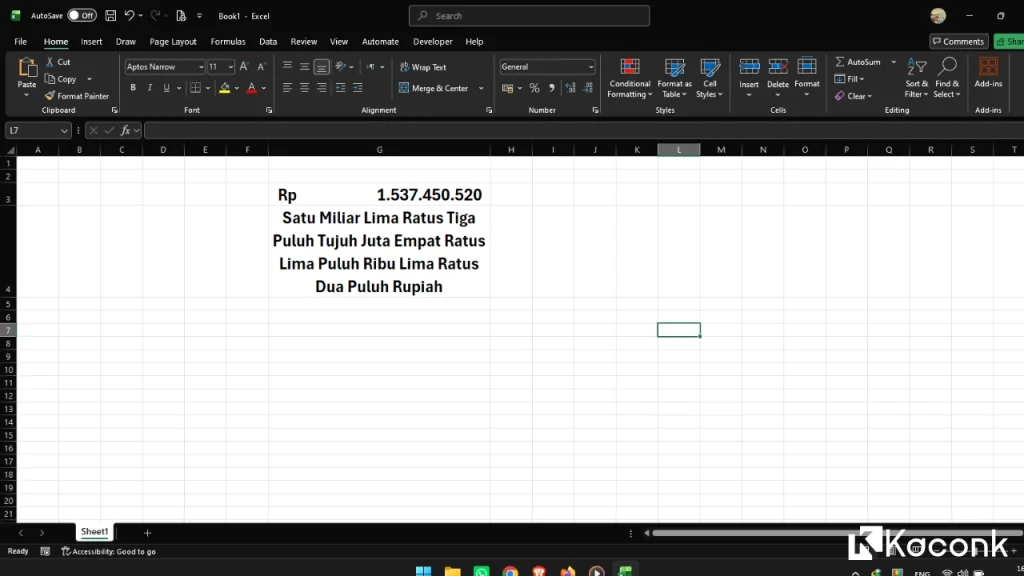
The Number to Words function converts numerical values into words or sentences. In Indonesia, this function is commonly known as “Terbilang” and is frequently used for receipts, invoices, payment documents, and other financial paperwork.
For example:
1,250,000 → One Million Two Hundred Fifty Thousand Rupiah
This can save time when preparing financial documents because you do not have to manually type the written amount for every transaction.
Download Terbilang Formula for Excel
The downloadable file contains a ready-to-use formula that can be added to Microsoft Excel without requiring you to manually rewrite the underlying code.
Download

The formula is designed to make it easier to convert numbers into written amounts, particularly for documents that use Indonesian Rupiah (IDR).
How to Use the Terbilang Formula for Excel
After downloading the file, follow the included instructions to add the formula to your Excel installation.
Once the formula has been added successfully, you can use the Number to Words function to convert numerical values into written text.
For example, you can use it for:
- Payment receipts
- Invoices
- Financial reports
- Purchase orders
- Sales documents
- Expense reports
- Official payment documents
If you have difficulty installing or using the formula, you can also read our previously published tutorial, How to Create a Rupiah Number to Words Function in Excel, for a more detailed explanation.
Compatible Microsoft Excel Versions
The formula is intended to support a broad range of Microsoft Excel versions, including:
- Microsoft Excel 2007
- Microsoft Excel 2010
- Microsoft Excel 2013
- Microsoft Excel 2016
- Microsoft Excel 2019
- Microsoft Excel 2021
- Microsoft Excel 2024
- Microsoft Excel 365
Compatibility may vary depending on the Excel installation and configuration.
Why Use a Terbilang Formula for Excel?
Manually writing amounts in words can be time-consuming, especially when dealing with many financial documents. An automated formula can make this process faster and reduce the possibility of typing mistakes.
With an Excel Number to Words formula, you can simply enter a numerical amount and let Excel generate the corresponding written value.
This is particularly useful for businesses, schools, offices, accounting departments, and anyone who frequently prepares financial documents.
Conclusion
The Excel Number to Words Formula is a practical solution for automatically converting numerical values into written amounts. It can be useful for creating receipts, invoices, financial documents, and other paperwork that requires amounts to be written in words.
The formula is ready to use and supports various versions of Microsoft Excel, from Excel 2007 to newer versions such as Excel 365 and Excel 2024.
We hope this article helps you use the Rupiah Number to Words Excel formula more easily and efficiently.
If you have any questions or encounter problems while installing or using the formula, feel free to leave a comment or contact the administrator through the contact page. We will be happy to provide further assistance.
Thank you for visiting, and see you in the next article!
